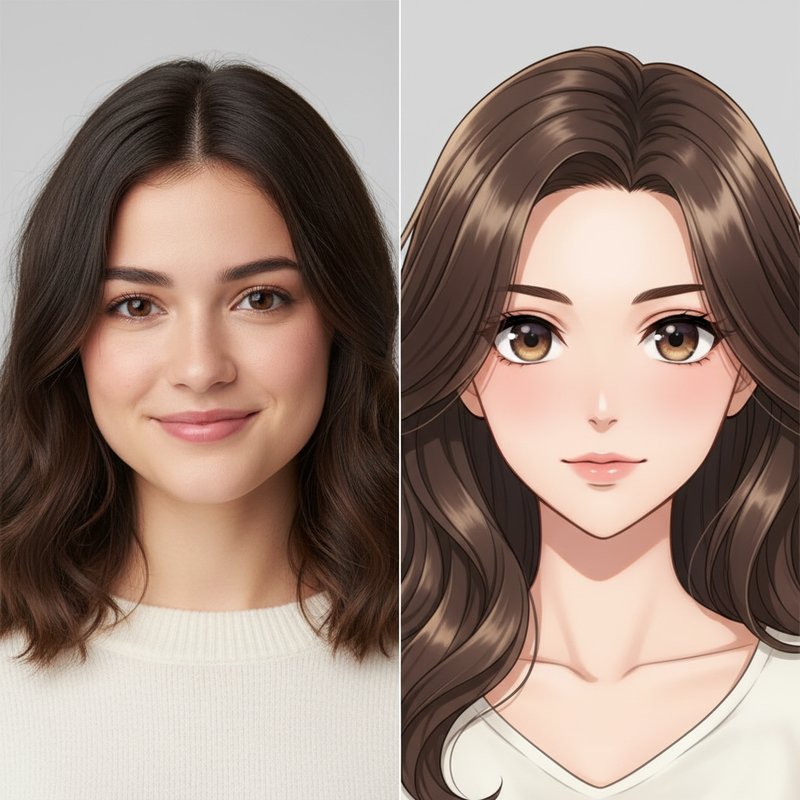
If you want to turn photo into anime online, the key is choosing the right style and starting from a clean, sharp photo. This guide shows a simple workflow you can use in minutes.
What Does “Photo to Anime” Mean?
A photo-to-anime effect converts a normal photo into a anime-style result. Good results keep features recognizable while simplifying colors into clean shapes, lines, or texture.
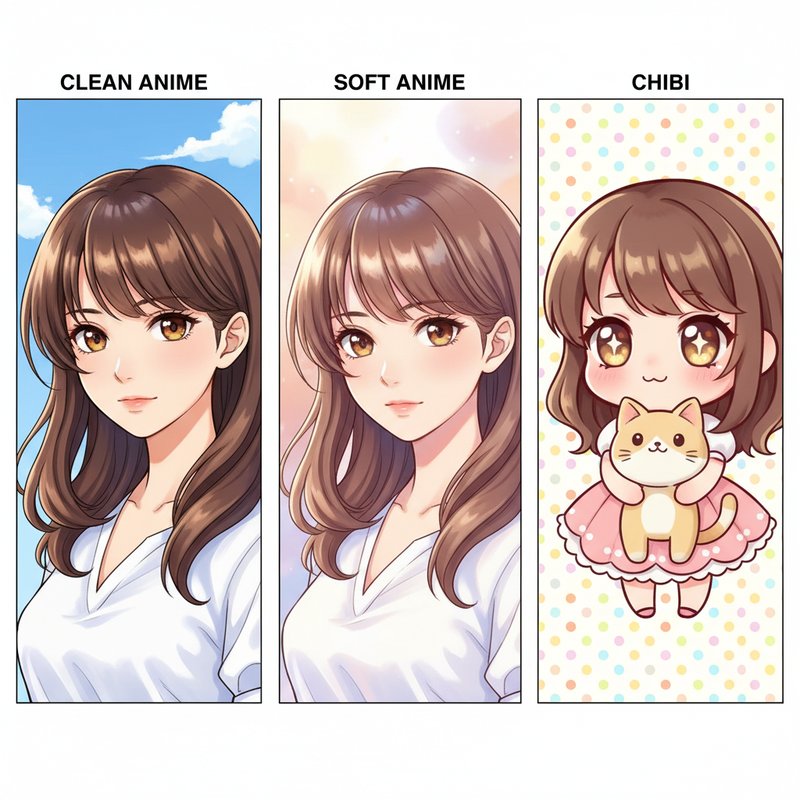
Pick the Right Anime Style
Different styles fit different photos. Try:
- Clean anime: Sharp lines and clear facial features.
- Soft anime: Gentler shading with a softer palette.
- Chibi: Cute proportions with simplified details.
How to turn photo into anime online (Step by Step)
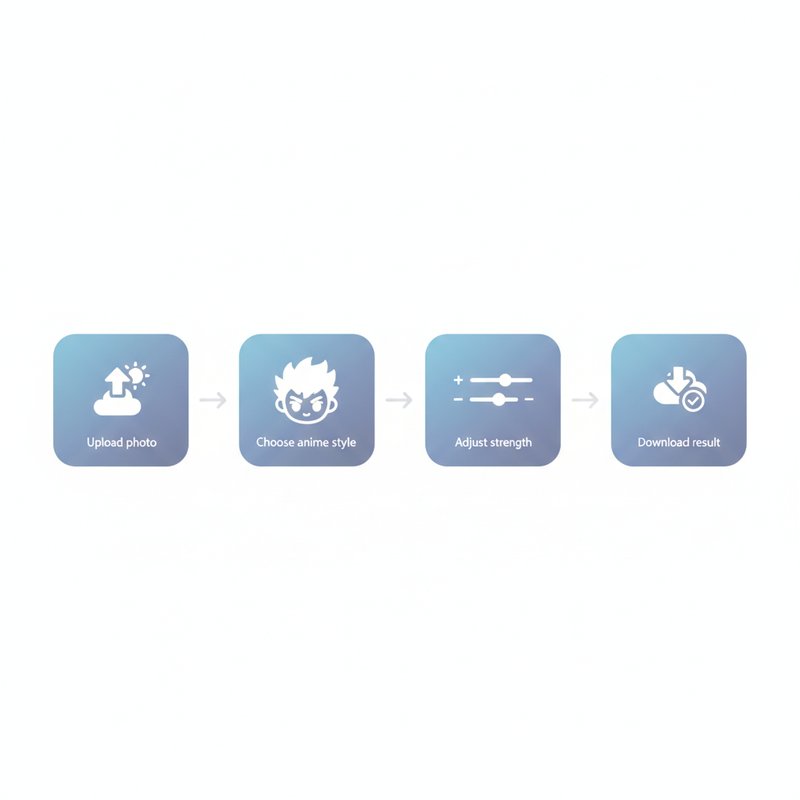
- Open the tool: Photo to Anime.
- Upload a clear photo (good lighting, sharp edges).
- Choose a style and adjust the strength (avoid over-processing).
- Preview the result and download the final image.
Best Settings for Clean Anime Results
- Face framing: Crop closer for better facial detail.
- Lighting: Even lighting improves skin and hair rendering.
- Background: Simple backgrounds keep results clean.
- Strength: Avoid max strength if you want a more natural look.
FAQ
What photos work best?
Front-facing photos with good lighting and clear eyes usually work best.
Can I get different anime looks?
Yes—try clean vs soft vs chibi styles and adjust strength.
Will it keep my likeness?
Good tools preserve key facial proportions, but results can vary by photo.
Conclusion
To turn photo into anime online quickly, start with a sharp photo, pick a matching style, and avoid maxing out the effect strength. Try it here: Photo to Anime.